


How to create a bot in the new builder: the 5 steps
5 min readMarket, minutes, conditions, alert and review: what you do in each step, the 3-condition rule and an example of a corners bot.
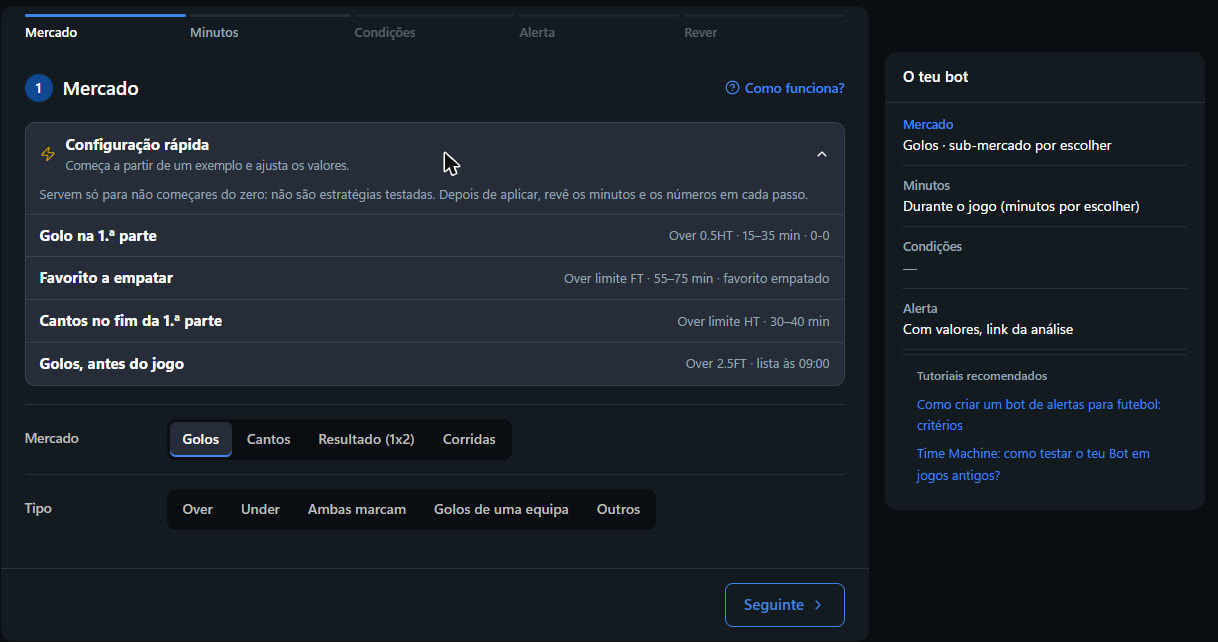
The new bot builder takes you through 5 steps, in this order: Market → Minutes → Conditions → Alert → Review and create. On the right, the Your bot panel keeps showing what you have already chosen.
In this guide you will see what you do in each step, where the conditions are and an example of a corners bot built from scratch.
Before you start: what scenario do you want to find
"A corners bot" is not a scenario. A scenario describes what is happening in the match, for example:
- a home team pushing hard at the end of the 1st half;
- an open match, with both teams shooting;
- a favourite that is drawing and starts to put on pressure.
Think about the scenario first. The conditions come afterwards, to describe it.
The 5 steps
- Market. What you want to happen after the alert: goals, corners, result (1x2) or races, and the line (for example Over 0.5HT or Over Limit FT). If you don't know where to start, open Quick setup: there are four examples that fill in the steps for you. They are there so you don't start from zero; they are not tested strategies.
- Minutes. During the match, you choose the window in which the bot searches (recommended: up to 20 minutes; for example End of the first half, 30–40'). Before the match, you choose between One alert per match or One list a day.
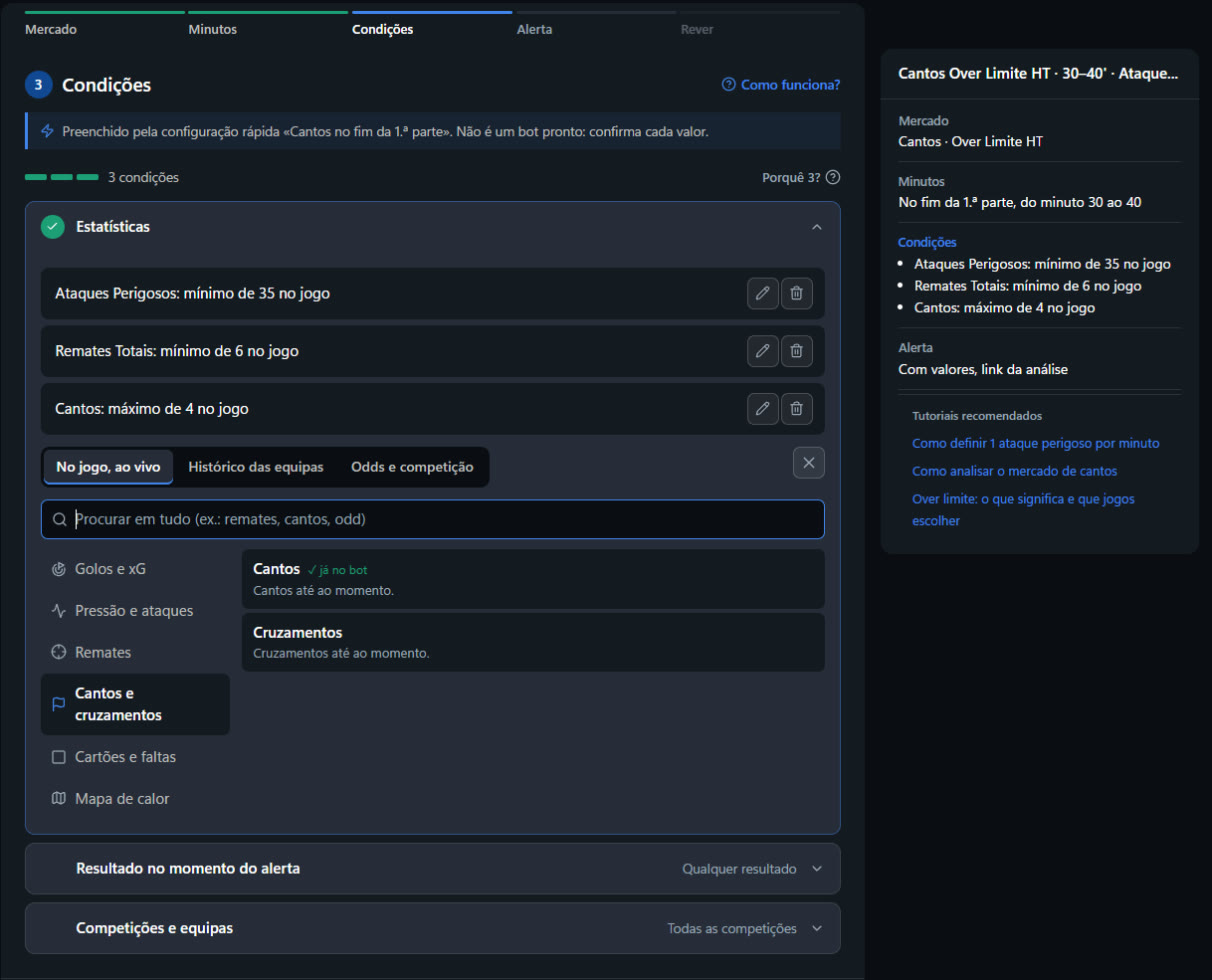
- Conditions. What the match has to meet: the score at the moment of the alert, the competitions and the stats. The bot needs at least 3 conditions, and the bar at the top shows how many you already have.
- Alert. What goes in the message (values, links, stats), when not to send (quiet at certain hours, only matches on Betfair) and a message of your own. It is all optional.
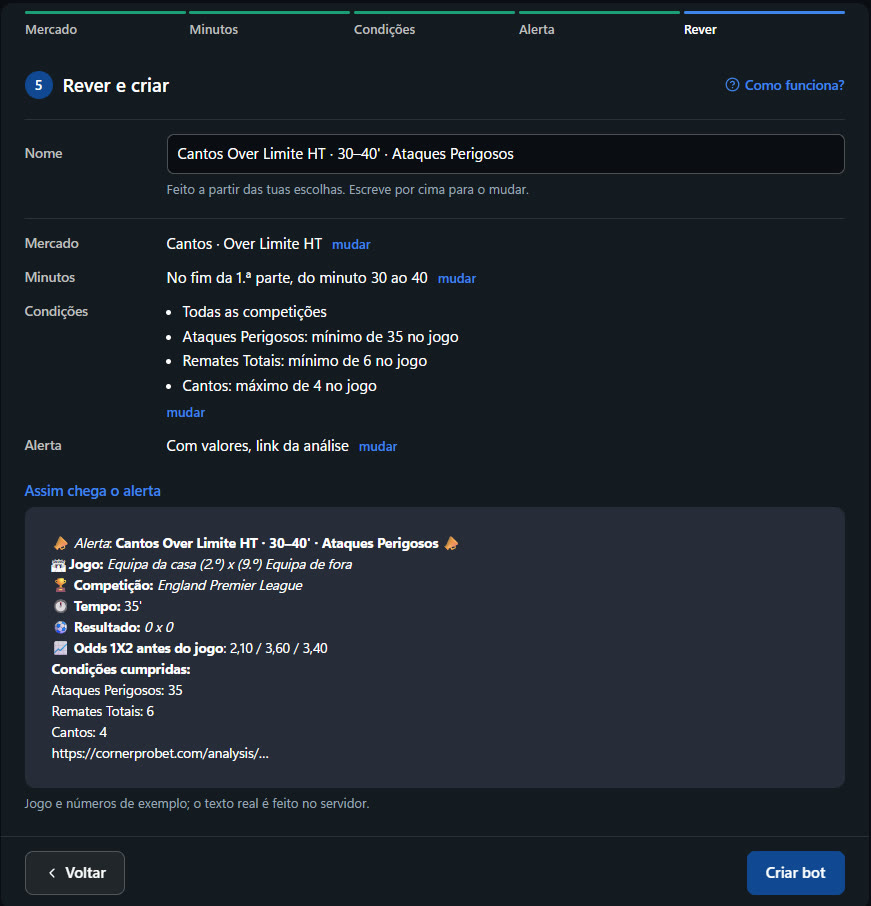
- Review and create. The name is built from your choices and you can type over it. In This is how the alert arrives you see an example of the message before you create the bot.
If you leave halfway, the bot is kept as a draft. Next time you will see You have an unfinished bot, with Recover or Discard.
Where the conditions are
In Choose stat, the catalogue is split into three:
- In the match, live: Goals and xG, Pressure and attacks, Shots, Corners and crosses, Cards and fouls, Heat map.
- Team history: goals, corners and cards from the last matches, the site's predictions in %, the averages and the values per period of the match.
- Odds and competition: the odds before the match and live, the league position, the Form, the aggregate of the two legs and others.
If you know what you are looking for, type it in the search (for example "shots", "corners" or "odds"). Outside the catalogue are the Score at the moment of the alert (0-0, draw, favourite winning…) and Competitions and teams.
The 3-condition rule
A bot with a single condition goes off in almost every match, and the alert loses its value. That is why the builder asks for at least 3. The score, the competitions you choose and each stat count. "Any score", "All competitions", the exclusions (women's, cups…) and, for now, the favourite do not count.
More conditions don't make a better bot either: each one cuts out matches. Choose conditions that make sense together, for example one for the scenario, one for pressure and one for quality.
Example: a corners bot at the end of the 1st half
- Market: Corners › Over › Limit › Over Limit HT. It is the Corners at the end of the first half example in Quick setup.
- Minutes: End of the first half, from minute 30 to 40.
- Conditions: Dangerous Attacks, minimum 35 in the match; Shots Total (On target + Off Target), minimum 6; Corners, maximum 4 (so the line is still low).
- Alert: with the values and the analysis link.
- Review and create: the name comes out by itself, "Corners Over Limit HT · 30–40' · Dangerous Attacks".
The numbers in the example are a starting point. Adjust them to your scenario and to the competitions you follow.
After creating it
- To get the alerts, turn on the Bot chat in the app: that is where your bots' alerts arrive, on your phone. If you prefer Telegram, connect it in Add Bot to Telegram, at the top of the Bot page.
- If the bot didn't alert in a match, open the bot's ⋮ menu and choose Why no alert?: you see which conditions failed and the value the match had.
Frequently asked questions
Do my old bots open in the new builder? Yes, with Edit. Almost everything can be edited there. What can't be edited yet appears as "as it was saved" and stays the same when you save.
What is the difference between a list and an alert in pre-match bots? One list a day sends all the matches that meet the conditions at the time you choose. One alert per match notifies you before each match.
You are creating a bot in the new builder and want more relevant alerts. What is the best approach to the conditions?
Answer to mark this tutorial as done.