


Why no alert? How to see what failed and fix the bot
2 min readWhere it is, how to read the answer, what «outside the window» means and how to fix the bot.
When a bot didn’t alert you to a match you were expecting, the new Bot page tells you why: which conditions failed and the value the match had. In this guide you’ll see where it is and how to read the answer.
Where it is
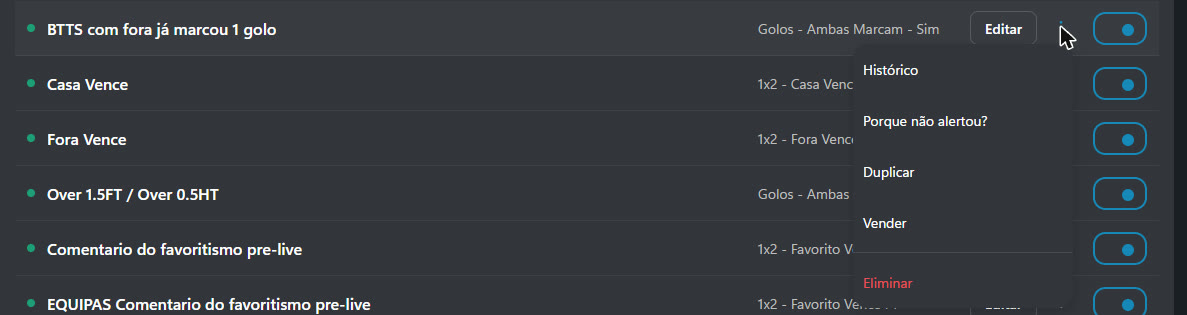
In the My Bots list, open the bot’s ⋮ menu and choose Why no alert?.
The answer in one sentence
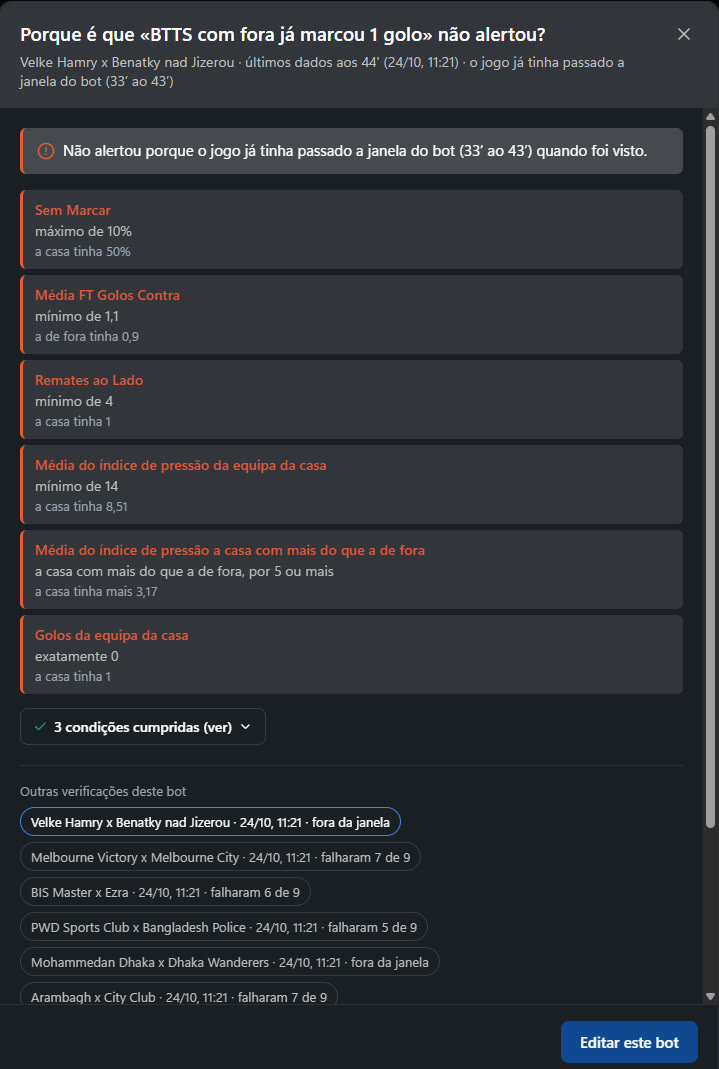
At the top you’ll see the match, the minute of the latest data and the answer, for example: «No alert because 3 of 9 conditions failed». Right below, you’ll see the names of those conditions.
Each condition that failed
Below that, there is one line per condition: what you asked for and what the match had. For example: «Goals of the home team · exactly 0 · the home side had 3». The conditions that were met are grouped together under conditions met (show).
Outside the window
If the match was checked before or after your bot’s minutes, the answer says so, for example: «the match was already past the bot window». In that case, the conditions aren’t the problem at all: the bot can only alert within the minutes you chose in step 2.
Other matches
Under Other checks for this bot you’ll see the latest matches it analysed, each with the reason: how many conditions failed or «outside the window». That way you can tell whether it’s always the same condition holding the bot back.
Pre-match bots
A pre-match bot picks from the day’s list and doesn’t check match by match. There, the way to go is the bot’s History, in the same ⋮ menu, which shows what it picked.
Fixing the bot
Edit this bot opens the builder. If a condition fails almost every time, loosen it (a lower minimum, for example). If the bot is often outside the window, review the minutes. Change one thing at a time, so you can tell what made the difference.
You open «Why no alert?» and read «the match was already past the bot window». What does it mean?
Answer to mark this tutorial as done.